Template Sets
How to add a game Part 3 (Template Sets)
Template sets are the next step for adding a game, mostly their configuration on the panel. Games can be entirely added or edited to have their configurations, deployment, directories and initialization set up through our system directly. When adding or editing a game, template sets are the most important and robust feature in here.
Template sets
Template sets allow you to create different configuration presets for your game servers. Each template set can contain different server settings, configurations, and startup parameters. You can then assign these template sets to different deployments or use them when creating new servers.
Configuration of a template set
There are three types of configurations: Configuration file, Command Line and Script.
Configuration file: Files can be set as a configuration file, which allows the system to write to it on each server boot. Config file can be set to always write it on start or not and allows variables to be set from it.
Command Line: Line arguments that run alongside an executable file. Only one command line configuration can exist per template.
Script: Any scripts that are needed to run at container start, main process start or manually at an interval with a timeout. It supports Bash, Shell, Python, Node Js, Batch and PowerShell.
Configuration file
When creating a new config file there are three tabs available:
Configuration: Where general configuration is decided.
Variables: User-interactive defined variables from the configuration file itself. They can be created from the template by using a parent wrapper.
Template: This tab shows the template content in text form to convert to variables. Instructions and reminders are below the content window on how to create variables.
Configuration
In this section:
Description: Simple and internal description of the template, for identification mostly.
Variable Delimiter: Defines the delimitation of the template content in either linebreak or space. (Mostly obsolete as it's for legacy app)
Config Directory: The directory path that is relative to the server root dir. For example, for a configuration file inside a game subfolder it'd be
./PingCoreGame/Config/Config Active: Whether or not the template is active on the deployment. If it's not active it's not applied to deployment.
Always Write Config?: System always write to Config files on server start, regardless of this toggle. However, if disabled, clients can disable writing to the config file on their side to let edits persist throughout server restarts.
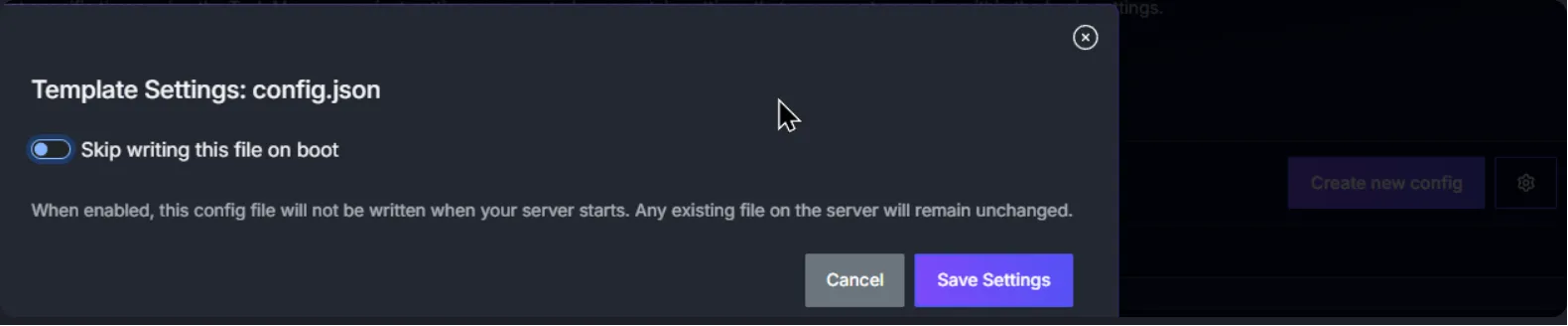
Web Interface Access?: If enabled it allows the end user to create config templates of the config file inside the Config Manager section. If disabled, the config file is locked and can't be edited at all with the label "Editing Not Allowed". (Admins will have the Admin Override option present)
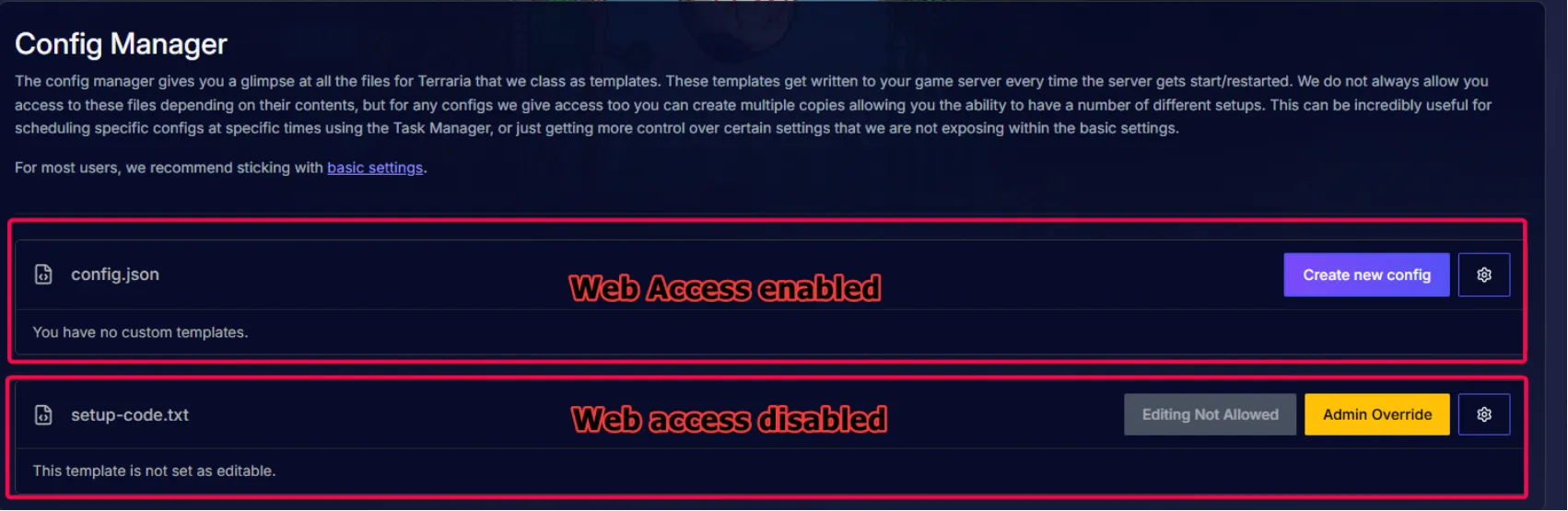
Variables
Variables are what different functions or configurations that the system handles for a game. They can range from ports or server name to difficulty setting. Variables are created by using a "parent wrapper" and a value that's defined by the user, that value is set as "%USERVAL%" as it'll be replaced by the user's desired value on each restart. They are organized into Headers for a neat presentation and interface within "Basic Settings". Note that some variables like ports are hidden from Basic Settings to end users.
How to add variables and Templates
Variables can be created manually or semi-automatically by using the Template tab. By inserting the actual config file content in the template tab, the panel detects and converts possible values from the template content. Explanation and reminders on how to add variables are below the template box for help.
There are four variable types: regular variables, special variables, system variables and startup scripts.
Regular variables support JSON, YAML, INI, XML, Properties, and Command Line formats.
Special variables, like %MAXPLAYERS%, allow users to adjust maximum amount of players joining the server in a special menu option. It's not required but recommended.
System variables are replaced automatically at bootstrap with server-specific values. These are: Memory requests (in MB), Memory limits (in MB) and server IP address. Syntax and math expressions examples are visible below template.
Startup scripts can be either for Windows (.bat or .ps1 Powershell) or Linux (.sh, .py or binaries). Startup scripts should include
-identifier_serveron the command line to improve service tracking capacity from the system, though it isn't required.
Variables can be selected from the template and converted to variables by using the in-context right-click menu.
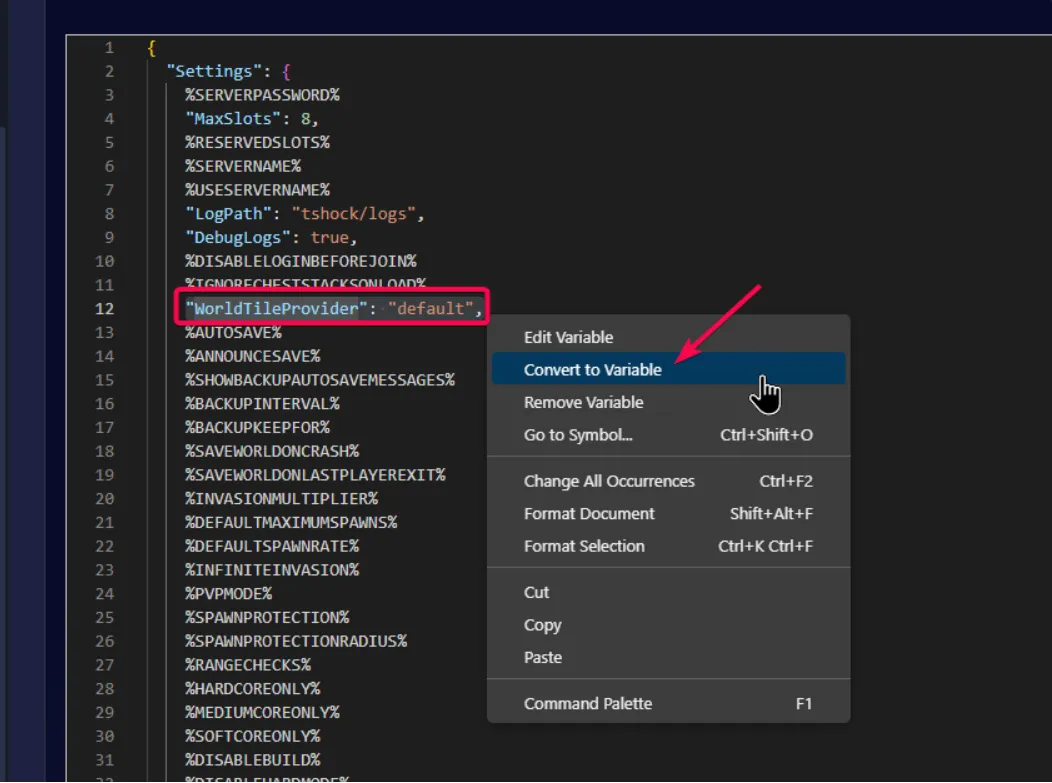
Convert to Variable
When converting a line into a variable, a menu pops up. Inside, the variable name, field type and parent Wrapper must be set, the rest of the features are optional. Variable configuration is only saved when Template is saved, otherwise, it won't apply to new or existing deployments.
Variable name: The name of the variable visible on Basic Settings. We recommend a clear identifier that somewhat resembles the original config line.
Type: This how customers enter this value. The platform maps it to the legacy field format automatically. It can be a Text Input, Select (fixed list), Select (list+ custom entry), Checkbox, IP address or a port. IP and port are special variables read-only by end-users. Select (fixed list) and Select (list+ custom entry) have an extra Options field explained below.
Options: Used for Select (fixed list) and Select (list+ custom entry); it defines the expected values for the variables in list form. It provides freedom to make variables simpler for end-users.
Parent Wrapper: The actual wrapper taken from the config file. In the example, it's
"WorldTileProvider": "default",. The value will be used by the end-user defined value or%USERVAL%.Default value: The value for the variable set by default at game deployment. It can be left empty if it's an optional variable.
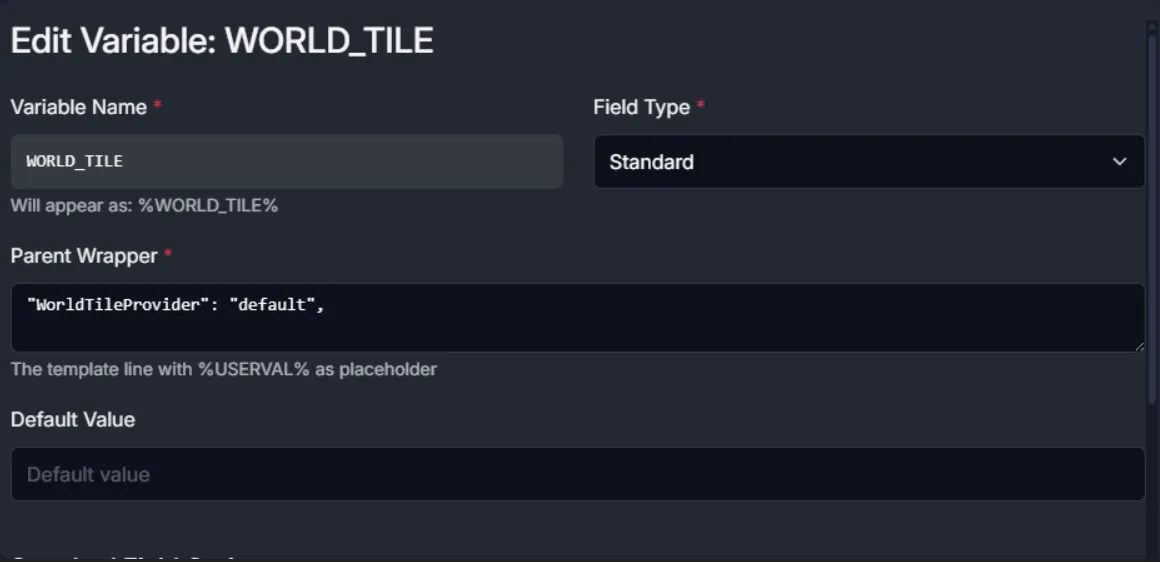
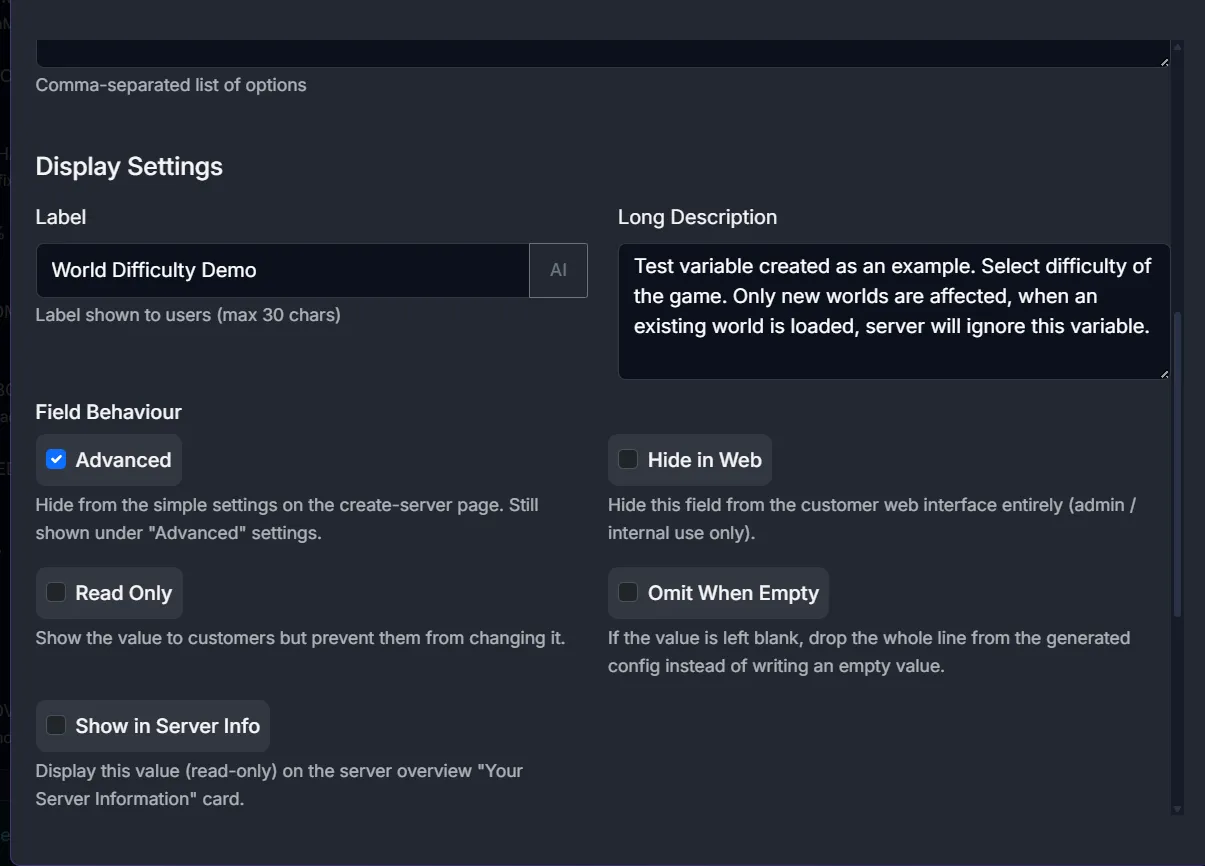
Display Settings: These settings control what the end user will see: A short and a long description and the variable visibility and type. It can be controlled on how it will be presented on Basic Settings through the Field Behaviour.
Advanced: If enabled, it will hide it from the simple settings on the create-server page. It will still be shown under "Advanced" settings.
Hide in Web: It will hide this field from the end-user completely. Only admins can see it/interact with it.
Read Only: The value can't be changed, only read. Good for exposed information like codes, status, etc or for sensitive settings that require advanced configuration or interactions.
Omit When Empty: If the value is left blank, drop the whole line from the generated config instead of writing an empty value. Good for when a variable is ignored when not included in the config file.
Show in Server Info: Display this value (read-only) on the server overview "Your Server Information" card. Usually reserved for ports, versions, etc.
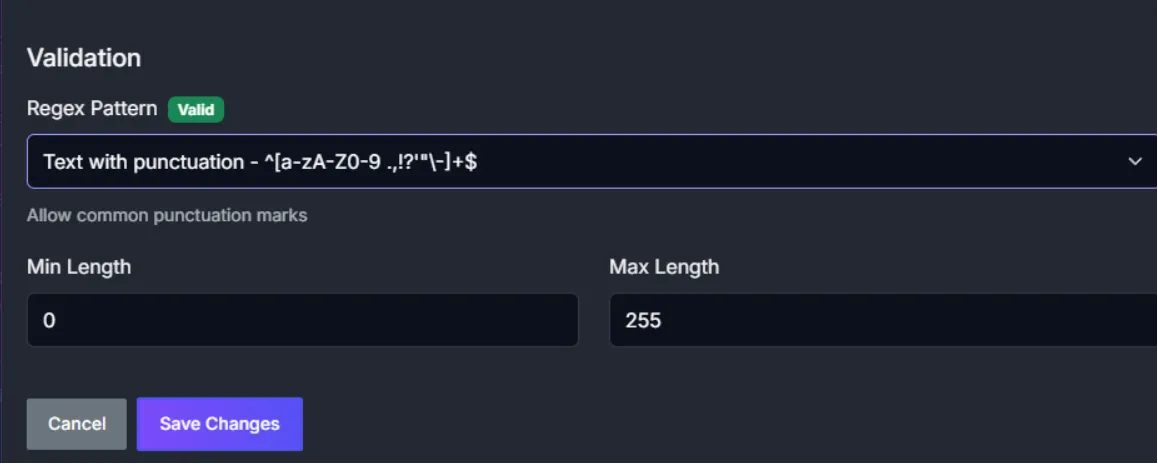
Validation: To impose a specific Regex Pattern on variable fields. There are integer, floats, alphanumeric among others. Very useful for configurations that require a specific set of characters or for randomization (such as seeds and such).
Port Range: When setting a variable as a port, the port-specific option Port Range is available. This controls the number of additional ports to open above the port selected, if a single port is needed, just insert 0. Used for features such as remote controllers, consoles and web managers that need specific numbers of ports to be opened and managed. For ports, it's important to note that configuration requires two end-points and a bridge point in the middle: config template, deployment configuration (acting as a link) and container configuration.