Game Overview
How to add a game Part 1 (Overview)
Where to Start to Add a Game in PingCore
Whether a new game in the market or your own made game, servers can only be deployed for added games in the platform. Inside the Games category on the workspace there's a Games section, in here, use the button "Add Game" to start.
The screen will present you to the sequence of sections to configure your game, the recommended order is going from left to right:
Overview->Branches->Template Sets->PVCs->Ephemeral Volumes ->Containers->Deployment Specs->YAML Preview.
Starting out: Overview
Game Information
In this section you can define the overall characteristics of your game:
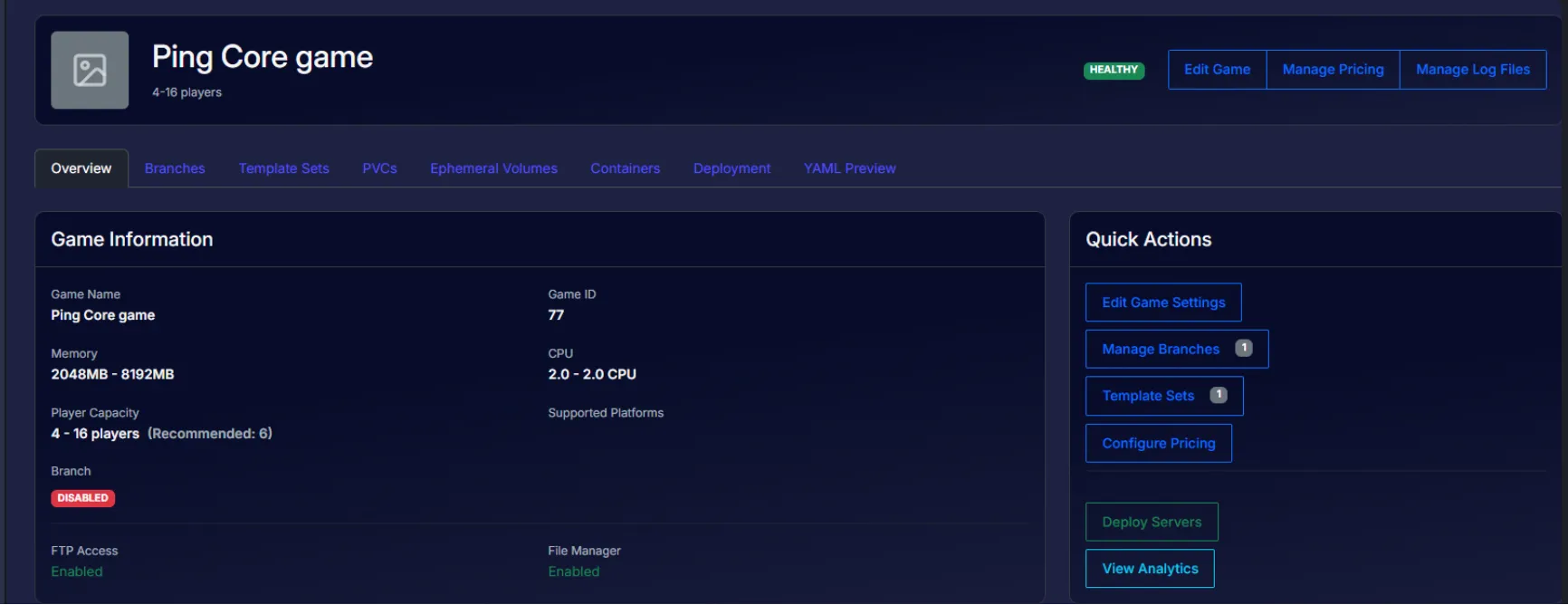
Game Name: The name of the game in your workspace and that end users will see, self explanatory.
Minimum and Maximum players: The allotted min and max players allowed in the configuration, min and max players also impacts memory balance for management.
Recommended players: The recommended or optimal number of players for the game. This number can be either by design or performance
GameDig ID: Feature that allows tracking servers through a query system when running, showing data like player numbers, hostname or version. It has to be maintained by developers. Useful for Game Server Providers
Supported Platforms: Platforms that are compatible with the game. Multiple selection is possible, it adds a small icon on top of the thumbnail to display them.
Media
Thumbnail: Self-explanatory. Cover image art for the game in the Games section. PNG or JPG only. Must be 16:9 aspect ratio (e.g. 737×419). Max 100 KB.
Manage Server Hero: Another cover image art but, this time, for the Manage Server page in the control panel. PNG or JPG only. Must be 32:9 aspect ratio. Max 500 KB.
Memory Configuration
Memory allocation curve for this game. Used for checkout suggestions and server deployments.
Minimum and maximum memory for each game as well as an overhead that acts as a burst buffer when reaching max memory; each of the memory levels is controlled by a slider.
Memory Thresholds
Controls how the container service monitors and enforces memory usage for game processes. Each server has a request (guaranteed memory) and a limit (request + overhead). The burst zone is the gap between the two.
Warning %: Default is 90. An alert is triggered when memory usage exceeds this percentage of the server's memory request, this is a warning only, no action is taken. In this example of 90% default value, for a 11,264 MB request, let's say, the warning would be at 10,138 MB with a banner showing the high memory usage to the end client on My Server's page.
Critical Burst %: Default is 50%. Hard-stop the game process when usage enters this percentage of the burst zone. This is an immediate hard-stop that's main objective is to prevent out of memory process kills. Under the same example conditions: a request of 11,264 MB + (1,024 burst x 50%) = critical at 11,776 MB.
Restart Burts %: Default is 25%. Restarts the game process when usage enters this percentage of the burst zone. This is a graceful restart of the game process. Under the same example, a request of 11,264 MB + (1,024 burst x 25%) = restart at 11,520 MB.
Disable Checks: Default is disabled. Bypasses all memory threshold enforcements; basically, when enabled, the node service will not enforce any thresholds. The game process can use up to the container limit before Kubernetes kills the process due to an Out Of Memory situation. It can lead to data corruption in the PVCs.
CPU configuration
CPU limit curve scaled by memory allocation. Measured in millicores, 1 CPU = 1000m, the m suffix stands for "millicpu" or thousandth of a core. At minimum memory a server gets min CPU; at maximum memory it gets max CPU. Set both to the same value for flat CPU across all server sizes.
Flat CPU means that every server gets 2.0 CPU (2000m) at any memory allocation. In most cases we recommend Min/Max to be the same.
Min CPU: Slider that controls the CPU limit at minimum memory allocation (from previously configured min memory). This is the lowest CPU any deployed server for this game will receive.
Max CPU: Slider that controls the CPU limit at maximum memory allocation (from previously configured max memory). This is the highest CPU any deployed server for this game will receive.
Deleting a game
Open the game, click Edit Game, then click Delete Game. Opening the page requires the my-games.edit permission and deleting requires my-games.delete. A deleted game cannot be restored.
A game cannot be deleted while a fleet runs it or while any of its deployments still exists. A failed deployment counts, and so does one that is still removing until its removal finishes. The delete is then refused with a message naming how many fleets and deployments use the game, for example "This game is used by 2 fleets and 1 deployment. Delete the fleets and remove the deployment first."
To delete the game, first delete those fleets (see Fleets Overview) and remove those deployments (see Creating and Scaling Deployments), then click Delete Game again.